Getting Started With twinleaf-python
Installing twinleaf-python
First, ensure that Python and pip are installed on your device. To check the current versions of this software, use the commands:
python --version

pip --version
Python 3.10 and later is required to run the twinleaf-python module. Additional assistance for installing Python can be found here: Installing Python
Second, navigate to the twinleaf-python repository: twinleaf-python and clone the repository. The respository README.md file also has more instructions and information for the tools and is a helpful resource. Navigate into the twinleaf-python repository.
Then, install (or upgrade) Twinleaf's Python package using the command:
pip install twinleaf

Linux: pipx install twinleaf
Once you have installed twinleaf-tools, there are several programs for communicating with your device.
Communication with itl
itl provides a way to set different values related to your device. To start itl, type the following into the command line:
% itl /dev/[usb-path]
where [usb-path] should be replaced by the specific usb type and serial number. Below are the standard path based on operating system.
MacOS: itl /dev/cu.usbmodemXXXXXX or itl /dev/cu.usbserialXXXXXX


Windows: itl COM3


Linux: ./.local/bin/itl /dev/ttyACM0 [-s /0]
After you run this command, the terminal window should look like the example below. From here, you can set and change different values for your device with command line functions. All commands will start with tl.settings. and will then change based on which device you are using.
% itl /dev/cu.usbmodem1101 -s/0

VMR (VMR.00430) [2025-11-07/d18ce3]


In [1]: tl.settings.vector()

Out[1]:

{'vector.data.enable': 1,

 'vector.data.decimation': 8,

 'vector.data.cutoff': -1.0,

 'vector.cal.x0': -0.13701006770133972,

 'vector.cal.y0': 0.04567002132534981,

 'vector.cal.z0': 0.04567002132534981,

 'vector.cal.xx': 0.0201790239661932,

 'vector.cal.xy': 0.0,

 'vector.cal.xz': 0.0,

 'vector.cal.yx': 0.0,

 'vector.cal.yy': 0.019430886954069138,

 'vector.cal.yz': 0.0,

 'vector.cal.zx': 0.0,

 'vector.cal.zy': 0.0,

 'vector.cal.zz': 0.020352665334939957}
This output shows all of the possible rpc commands available related to tl.settings.vector. It also outputs all of the possible vector measuremenets available through a VMR sensor. Now, for example, if your application only requires the x, y, and z axes measurements, the command to simply output those values once through itl would be:
% itl /dev/cu.usbmodem1101 -s/0

VMR (VMR.00430) [2025-11-07/d18ce3]


In [1]: tl.settings.vector.x0()

Out[1]: -0.13701006770133972


In [2]: tl.settings.vector.y0()

Out[2]: 0.04567002132534981


In [3]: tl.settings.vector.z0()

Out[3]: 0.04567002132534981
In order to output multiple values at once, or to have a stream of data, the next step is to write a Python scipt.
Once opening itl, we recommend typing tl.settings., then pressing TAB to see the available settings. You can navigate these settings through the arrow keys.
Communicating with Python Scripts
The twinleaf module performs metaprogramming to construct an object that has methods that match the RPC calls available on the device. To interact with a Twinleaf CSB current supply, for example:
import twinleaf
csb = twinleaf.Device('serial://COM1')
csb.settings.coil.x.current(0.25) # mA
To receive data streams from a sensor such as the Twinleaf VMR vector magnetometer, use the named streams:
import twinleaf
vmr = twinleaf.Device('serial://COM1')
print(vmr.samples.vector(10))
To find possible tio ports to use run tio-proxy --enum. Windows will often output some COMx port such as serial://COM3, while Mac OS will output some cu.XXXXX or tty.XXXXX name such as serial:///dev/cu.usbserialXXXXXX or serial:///dev/tty.usbmodemXXXXXX.
If tio-proxy --enum does not work try looking at serial ports in the respective OS device manager for active serial ports.
There are several examples available on the twinleaf-python page. We encourage you to try these examples as you build your own scripts.
Troubleshooting
Linux
Installation Errors:
The serialport library depends on libudev that is not included on certain Linux distributions. To install, use:
sudo apt install libudev-dev # debian linux
It might also be necessary to install libssl-dev
sudo apt install build-essential libssl-dev
We also recommend installing the python3-is-python package to run programs without errors.
Other Errors:
-
If you run into any command not found errors on Linux, try to log out of your account and log back in.
-
Linux will attempt to connect with the sensor to determine if it is a modem. On systemd systems like Ubuntu, disable ModemManager using
sudo apt remove modemmanager. To access serial ports without superuser access usesudo usermod -a -G dialout $USERand on WSL you may needsudo usermod -a -G tty $USER. -
It will be necessary to run
itlspecifying its path. After installation, runwhereis itlto find the path. Ifitldoes not work, try running withsudo.sudo ./.local/bin/itl /dev/ttyACM0 -s /0
Windows
Installation Errors: It will be necessary to manually configure the PATH environment variable. If you get a PATH warning, you will need to add pip's installation directory to your PATH. If the warning appears with the directory to add to the PATH, copy the directory. If there is no warning, but later on you receive a command not found error when trying to run itio, you might have the same issue and will need to find the directory to add to your PATH.
To find the directory:
- Open File Finder.
- Inside File Finder, search for "itio" in the search bar. This will take a few seconds.
- Once you see the results, look for a result that says
itioand has "Type: Application". - Right click on this result and click "Open file location". This should open a file containing a list of Python applications such as itio and tiomon.
- Then, click the bar at the top of File Finder to highlight the folder's directory and copy it.
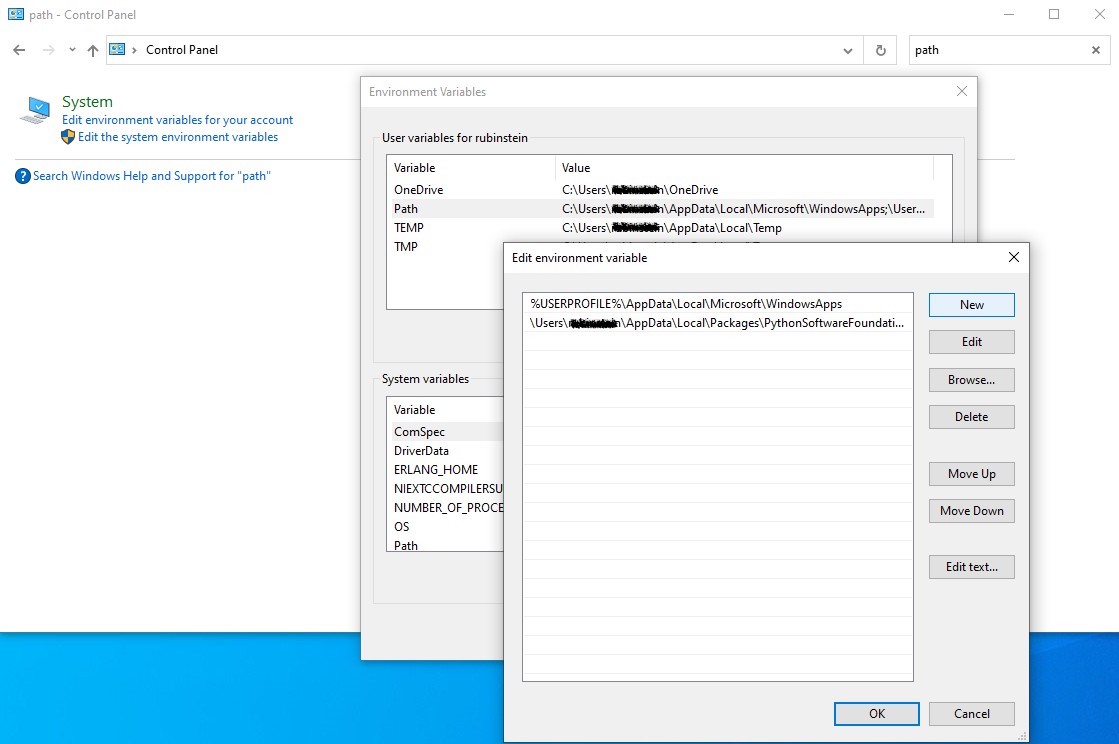
To add the saved directory to your PATH, open Control Panel. Once inside Control Panel, search "Path" in the search bar. Then, click the line that says "Edit environment variables for your account". This will open a new window with a list of environment variables. Double click on Path to open another window. Click "New" on the upper right corner of the new window. Then, paste the copied installation directory and save. See the screenshot below for reference.
Other Errors:
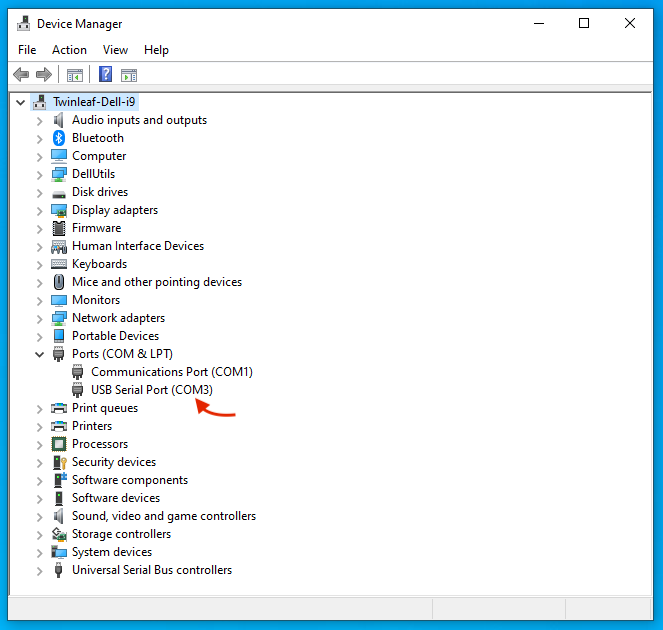
- Finding COM Number. Once you have plugged your device into your computer via USB, you will need to find the COM number specific to your connection setup. To do this, visit Device Manager and then Ports on your computer. Under Ports, you should see a USB Serial Port listed. Next to the listing should be a COM number in parentheses. See the screenshot below for reference (in our setup, it was
COM3).
-
The serial-USB adapter uses FTDI drivers that may not be installed by default.
-
If your mouse pointer goes crazy: If a windows computer is rebooted with a sensor plugged in, it can sometimes determine that the sensor is a serial mouse. It is possible to disable this in the registry.
-
If you run into an error installing packages on Windows, you may need to enable long paths.
If you have any questions or bugs you would like to report, please email contact@twinleaf.com so we can assist you.